Form properties ->Misc->AcceptButton

Saturday, September 29, 2007


Firefox - new profile
Step 1: Start Firefox and export your bookmarks as a file on your hard-drive (we'll need them later).

Step 2: Type firefox.exe - P in the Run box of Windows. (see screenshot)
Step 3: Click the Create Profile button without making any modifications to your existing profile (which is normally called "default")

Now when you Start Firefox in the new profile, you are very likely to be impressed with the speed. You can import the bookmarks that you saved in Step 1. If you have made any changes to the Firefox Dictionary, copy the persdict.dat word list file from the old profile folder to the new one.
Yes, there won't be any old Firefox add-ons in the new profile but the browser will be extremely quick and won't hog the CPU - just the way you want Firefox to run on your computer.
And if you ever need to revert to the old profile, just type Firefox -P again and click the old profile. Nothing is lost.
Tuesday, September 25, 2007
DOS command to delete directory with all sub directories without confirmations
Windows XP DOS command deletes the C:\TEST directory and all subdirectories WITHOUT ANY WARNING:
RD C:\TEST/S /Q
/S = Removes all directories and files in the specified directory in addition to the directory itself. Used to remove a directory tree.
/Q = Quiet mode, do not ask if OK to remove a directory tree with /S.
Saturday, September 8, 2007
Friday, September 7, 2007
Clean Up Ubuntu Grub Boot Menu After Upgrades
To remove GRUB entries, we'll need to edit the file /boot/grub/menu.lst. You can do this by using Alt+F2 and then typing in the following command:
gksu gedit /boot/grub/menu.lst
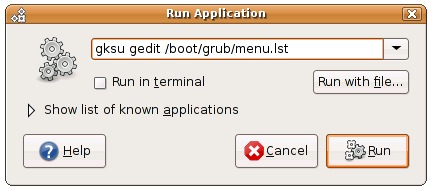
Now that we've got the file open, scroll down to the bottom of the file where it says "End Default Options", and you'll find all the menu entries for the various kernels in here. You can just select and delete the ones you want.
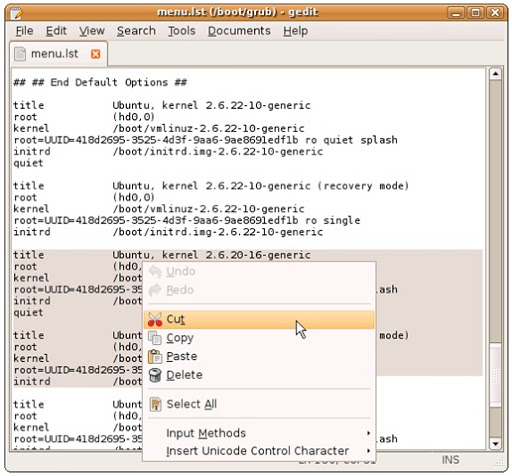
Save the file, and then the next time you boot up you'll see a much nicer set of options.
Comments:
No need to delete those lines to simplify the GRUB menu. The easier way to keep only newest lines is to open the menu.lst (gksu gedit /boot/grub/menu.lst), find "#howmany=all" and change it to "#howmany=1″. Then run "sudo update-grub" to update changes. Next time, only newest kernel lines will be shown.
Monday, September 3, 2007
Directory Security and Access Rules
using System.Security.AccessControl;FileSystemAccessRule faRule;
FileSystemRights fsrRights;
fsrRights = FileSystemRights.FullControl;
faRule = new FileSystemAccessRule(new NTAccount("DOMAIN\\user"),
fsrRights,
InheritanceFlags.ObjectInherit | InheritanceFlags.ContainerInherit,
PropagationFlags.InheritOnly, AccessControlType.Allow
);
//security.AddAccessRule(faRule); //File.SetAccessControl(txtFile.Text, security); DirectorySecurity dirsec = Directory.GetAccessControl(@"\\server\sub$\folder");dirsec.AddAccessRule(faRule);
Directory.SetAccessControl(@"\\server\sub$\folder", dirsec);
Sunday, August 26, 2007
Saturday, August 25, 2007
Ms Word tips
Where Was I? I get up and walk around frequently when I’m writing—gets the blood flowing. Sometimes I close a document I am editing, and when I come back to it and open it up, I just hit Shift + F5 to return to the exact place in the document where I was editing.
Serial Saves. If you’re like me, you often have many documents open at once. For safety’s sake, I like to frequently save all of them at once. To do this, hold down the Shift key when you go to the File menu. This changes Save to Save All.

Paragraph Hopping. You can circumvent the multi-step process of cutting, pasting and deleting to move paragraphs with an easy paragraph hopping feature. Often when I’m writing, I decide that a given paragraph would work better above or below another one. Do this: Go into a document with several paragraphs and put your cursor at the beginning of one of the middle paragraphs. Hold down the Shift and Alt keys in unison, then use the up and down arrow keys to “hop” the paragraph to new positions in the document.
One Fell Swoop Word Deletion. You can delete entire words with your keyboard. Just put your cursor at the beginning of the word and press Ctrl and Del together. This is very useful when editing.
Customize Line Spacing and Alignment. The Ctrl key is your best buddy when you want to experiment with line spacing and alignment variations. Ctrl + 1 provides single spacing, Ctrl + 2 provides double spacing and Ctrl + 5 provides 1-1/2 line spacing. Ctrl + R right aligns a paragraph, Ctrl + L left aligns one, and Ctrl + E centers one.
Quick Selecting. You can select all text between the current location of your cursor and the end of the current paragraph by hitting Ctrl + Shift and the down arrow.
Ctrl + [ or ], de- or increases the font of the selected text with 1 point.
Ctrl + “+” for subscript and ctrl + shift + “+” for superscript
Shift + F3 changes the case of selected text — UPPER — lower — Sentence case.
After ctrl-Z you can step back your changes by using Ctrl Y.
Press Control + Shift + C to copy the formatting and styles.
Select the location of the text where the formatting and style needs to be applied, and then
Press Control + Shift + V to paste the style and formatting (including Colors, Fonts, Font sizes, Paragraph styles, Headings and everything else).
Friday, August 24, 2007
DataGridView Column Header Style
In order to use styles in your DataGridView control for your .NET 2.0 Windows application, you must specify dgvMyDataGridView.EnableHeadersVisualStyles = false.
Example of the code:
//Instantiate new DataGridViewCellStyle
System.Windows.Forms.DataGridViewCellStyle dataGridViewCellStyle2 =
    new System.Windows.Forms.DataGridViewCellStyle();

//Define Header Style
dataGridViewCellStyle2.Alignment =
    System.Windows.Forms.DataGridViewContentAlignment.BottomCenter;
dataGridViewCellStyle2.BackColor = System.Drawing.Color.Navy;
dataGridViewCellStyle2.Font = new System.Drawing.Font("Microsoft Sans Serif",
    8.25F, System.Drawing.FontStyle.Regular, System.Drawing.GraphicsUnit.Point, ((byte)(0)));
dataGridViewCellStyle2.ForeColor = System.Drawing.Color.White;
dataGridViewCellStyle2.SelectionBackColor =
    System.Drawing.SystemColors.Highlight;
dataGridViewCellStyle2.SelectionForeColor = System.Drawing.Color.Navy;
dataGridViewCellStyle2.WrapMode =
    System.Windows.Forms.DataGridViewTriState.True;

//Apply Header Style
this.dgvTransactions.ColumnHeadersDefaultCellStyle =
    dataGridViewCellStyle2;

//Disable Headers Visual Styles - apparently there is an "automatic"
// visual style that needs to be disabled
this.dgvTransactions.EnableHeadersVisualStyles = false;
DataGridView - Conditional Color Change
If DataGridView.Rows(i).Cells("locuscount").Value = "0" Then
          DataGridView.Rows(i).Cells("Status").Style.BackColor() = Color.AliceBlue
End If
Subscribe to:
Comments (Atom)