
Showing posts with label linux. Show all posts
Showing posts with label linux. Show all posts
Saturday, December 1, 2007


Linux: Tips for new Ubuntu installation
35 Cool Applications to install on Ubuntu
Google Desktop on Ubuntu
13 Must Do things on new Ubuntu installation
A Casual guide to some commonly used Linux Commands
Essential house keeping in Ubuntu
Installing libdvdcss2 and w32 video codecs in Ubuntu Gutsy Gibbon
Support for WMV, RealMedia and other formats has been bundled into the w32codecs package. This package is not available from the Ubuntu repositories due to licensing and legal restrictions.
For Ubuntu Gutsy Gibbon Users run the following command
sudo wget http://www.medibuntu.org/sources.list.d/gutsy.list -O /etc/apt/sources.list.d/medibuntu.list
Now you need to copy the key using the following command
wget -q http://packages.medibuntu.org/medibuntu-key.gpg -O-¦ sudo apt-key add -
Update the source list using the following command
sudo apt-get update
Install Codecs using the following command
sudo apt-get install w32codecs libdvdcss2
Using above download locations you can install most of the mutimedia codecs for ubuntu.
sudo apt-get update
Mplayer Plugin for Firefox
If you want to install Mplayer with plug-in for Mozilla Firefox run the following command
sudo apt-get install mozilla-mplayer
Tuesday, November 20, 2007
Linux: Find files on your computer with find
A standard Linux system has an incredible amount of files installed. Looking for a file location can be a painful task to do though a file browser.
Fortunately, there is a nifty command line available by default on any Linux distribution: find.
find can virtually find anything on your computer and comes with a lot of options. This tutorial will introduce a basic use of it and show how you can search your filesystem for file names matching a name pattern.
On Debian based distros, find is part of the package findutils. find allow one to search for files on a filesystem based on different condition, creation date, modified date, file size, file type, permissions, name ....
In this tutorial, I will be focused on finding files/directories based on their name, in order to explain in more depth the syntax of find, I will also show how you can narrow down your search by adding condition on size and file modification time.
This will suit most searches, if you need more details, I would recommend looking at the find's manpage.
1. Find basis
The default syntax of find is as such:
find [path] [expression]
where path is the path used as root for searching pattern and expression the expression we want the file to match.
2. Finding a file based on filename
Let say for instance you want to find all .avi files in users home directories. Search files can be found with the following command:
# find /home -name '*.avi'
If you want to search for *.mpg and *.avi files, you will use the following:
find /home -name '*.mpg' -o -name '*.avi'
Case insensitive searches can be achieved by using the -iname switch:
find /home -iname '*.mpg' -o -iname '*.avi'
3. Adding some more criterias
Those kind of searches might returns far too many results, making it hard to find waht you were looking for in the first place.
Fortunately, you can narrow down the search by adding criteria such as the file size and the file modification date.
Let'search for .avi files bigger than 700M. This can be done with:
find /home/ -name '*.avi' -a -size +700M
Now, let's find the same subset of files that were modified less than 15 days ago:
find /home/ -name '*.avi' -a -size +700M -mtime -15
4. Adding some actions
Grand, we can now find files based on a subset of criteria. What
would be even better is to apply some actions on those files. Action
can be done with the use of -exec switch.
We can now find .avi file that are newer that 15 days, in this example,
we are going to move those file to another location: /my/new/movies . I
consider that this directory already exist on your system.
Moving .avi files bigger than 700M and younger than 15 days to /my/new/movies can be done with:
find /home/ -name '*.avi' -a -size +700M -mtime -15 -exec mv '{}' /my/new/movies/ \;
Mind the use of '{}' and \; (there is a space before \;).
'{}' matches the file that was found, while \; terminate the exec statement.
5. Conclusion
find is a powerful tool with an extensive set of statement. This article only covered a small subset of available features. For more information on the find command I recommend checking out its man page.
Powered by ScribeFire.
Friday, September 7, 2007
Clean Up Ubuntu Grub Boot Menu After Upgrades
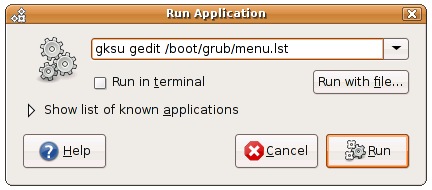
To remove GRUB entries, we'll need to edit the file /boot/grub/menu.lst. You can do this by using Alt+F2 and then typing in the following command:
gksu gedit /boot/grub/menu.lst
Now that we've got the file open, scroll down to the bottom of the file where it says "End Default Options", and you'll find all the menu entries for the various kernels in here. You can just select and delete the ones you want.
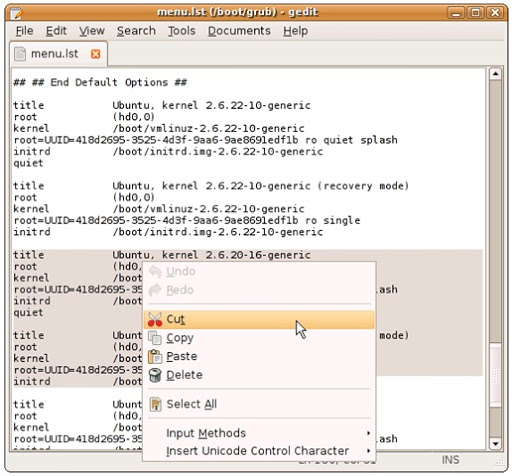
Save the file, and then the next time you boot up you'll see a much nicer set of options.
Comments:
No need to delete those lines to simplify the GRUB menu. The easier way to keep only newest lines is to open the menu.lst (gksu gedit /boot/grub/menu.lst), find "#howmany=all" and change it to "#howmany=1″. Then run "sudo update-grub" to update changes. Next time, only newest kernel lines will be shown.
Thursday, July 12, 2007
Bash Tutorial

Tuesday, July 10, 2007
Hotwire graphical terminal
 Free open-source app Hotwire is a GUI-based terminal with auto completion. Hotwire has most of the functionality of the bash shell tucked into an easy-to-use GUI. Intended to replace the Linux terminal, Hotwire is perfect for Linux beginners. Hotwire is a perfect way for new users to dip a toe into the terminal without diving in head first. Hotwire is a free download for Linux only. Ubuntu users can install Hotwire using:
sudo apt-get install hotwire
*Hotwire isn't in the Ubuntu repository. You have to download the .deb file from getdeb.net and install it manually.
This is also for Windows. See hotwire-shell.org
Saturday, June 30, 2007
Unix Filesystem
Windows users who dive into *nix without first researching the operating system are in for quite a shock. The complete lack of a C:\ drive can send Windows switchers into a tailspin. Thankfully, IBM developerWorks does an excellent job of explaining the structure and organization of the *nix filesystem and the perks of the *nix naming conventions.
| Many directories in the UNIX file system serve a special purpose, and certain directories are named per long-standing convention. In this installment of the "Speaking UNIX" series, discover where UNIX stores important files. |
UNIX file system [IBM developerWorks]
Saturday, June 2, 2007
SMPlayer - A VLC alternative?
SMPlayer is a video player that is supporting the most important video formats out of the box including avi, mpg, mov, wmv and vob plus numerous other formats.
It is also possible to play DVDs and Internet streams with the video player that is available for Windows and Linux. Several ways of displaying subtitles and various subtitle formats are supported including srt, sub and DVD subtitles.
Wednesday, May 23, 2007
Tuesday, April 24, 2007
Tuesday, March 27, 2007
Searching for Files in Linux (or Windows)
Anyone with Windows experience who is new to UNIX/Linux/CygWin pretty quickly figures out that the LS command in UNIX is the equivalent of the DIR command in Windows. At least, it is equivalent up to a point. Issuing the DIR command in Windows (with no arguments) will display the contents of the current folder. Issuing the LS command in UNIX with no arguments will do the same. After that, however, the similarities end. Say, for example, you’re searching for a file called “debug.log” that you know to be in a subfolder, or sub-subfolder, of the current directory. In Windows, the command “DIR /S debug.log” will do the job nicely. The “/S” switch tells the DIR command to recurse through every subdirectory, while the “debug.log” argument tells the DIR command what file(s) to look for.
In UNIX, however, the tool for that job is the FIND command, not the LS command. Specifically, in this case, it would be “find . -name debug.log”. The first argument after the word find — the lone period — tells the FIND command where to start looking. (As with Windows, a single period means the current directory.) The “-name” switch, together with its argument of “debug.log”, establishes a criterion for the name of the files to be found. There are dozens of other criteria available, which can be used separately or in combination. These criteria, or “tests”, include being able to test on the age of the file, the type of file, the size of the file, and attribute flags of the file. Other options available with the FIND command include actions that can be taken against the found files, such as deleting the file(s) found, or executing an arbitrary command and passing it the name of each file found.
Tip #1: Use “MAN FIND” to read all about the find command. Be sure to scroll all the way to the bottom to see a number of examples.
Tip #2: If you have trouble coming up with a combination of criteria to do what you expect, then take advantage of the -D switch to turn on one or more of the debug options. This gets the FIND command to “show its work” so you can see what it’s thinking, and how it’s interpreting the switches.
Tip #3: As you can see, the UNIX FIND command is
significantly more powerful than the Windows DIR command. CygWin, the
Linux emulator for Windows, allows the FIND command to be used in
Windows — to search Windows drives. (See our previous articles for how
to get started with CygWin.)
Monday, March 26, 2007
Beryl в Feisty
Установить Берил в последней версии Убунту стало еще проще
 Установите драйвер NVIDIA
Все - больше никаких переключений в виртуальную консоль и настройки параметров с помощ ью dpkg-reconfigure!
 Дайте серверу X знать, что вы требуете красоты
 Добавьте в список источников (Software Sources) эту строчку
 Обновитесь
 Установите Берил
 Хотите использовать свю тему GTK2 вместо Emerald?
 Занесите beryl-manager в Startup Programs в настройках вашей сессии, чтобы Берил автоматически запускался

Установите драйвер NVIDIAsudo aptitude install nvidia-glxВсе - больше никаких переключений в виртуальную консоль и настройки параметров с помощ ью dpkg-reconfigure!
Дайте серверу X знать, что вы требуете красоты sudo nvidia-xconfig --add-argb-glx-visuals --composite Добавьте в список источников (Software Sources) эту строчкуdeb http://ubuntu.beryl-project.org feisty main Обновитесьsudo aptitude update Установите Берилsudo aptitude install beryl Хотите использовать свю тему GTK2 вместо Emerald?gtk-window-decorator --replace & Занесите beryl-manager в Startup Programs в настройках вашей сессии, чтобы Берил автоматически запускался
Subscribe to:
Posts (Atom)